Monitoring Windows Instances
Overview#
Monitoring of Windows based application requires installation of a lightweight agent, sfAgent on Windows. sfAgent provides following features:
- Monitoring of various services based on specified configurations
- Log parsing and collection
- Trace Java, Python and Golang applications (check out sfTracing for details)
Supported Platforms#
- Windows Server 2012
- Windows Server 2016
- Windows Server 2019
Install sfAgent on Windows#
Download the sfAgent executable from the link below
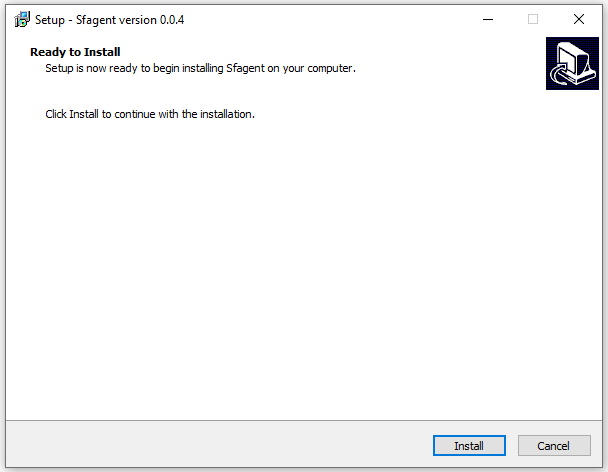
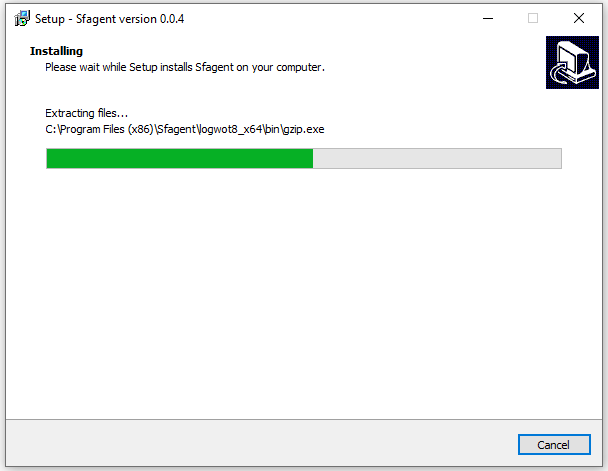
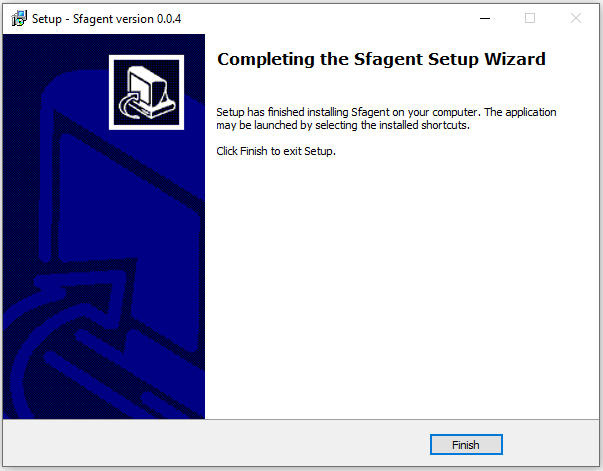
Dowload sfAgentRun sfAgent.exe executable with Administrator privileges and complete the installation
Configure sfAgent on Windows#
- Navigate to sfAgent installed location (C:\Program Files (x86)\sfAgent)
- Open file sample.yaml
- Add Key and edit configuration for metrics and logger
- Save it and rename sample.yaml as config.yaml
Prerequisites#
- Powershell.exe must be available in %PATH environment variable
- For winjvm plugin, java should be installed and java path should be set in %PATH environment variable
Run sfAgent service#
- Open task manager and service tab
- Search for service “sfAgent” and right click on it and click start to start service
- To stop right click on running service and click stop
Standard Plugins and Log Parsers#
sfAgent for Windows includes plugins and log parsers for a number of standard applications and operating system utilities.
| Category | Services |
|---|---|
| Windows[Windows Server 2012 and above] | CPU and RAM static and dynamic parameters WindowsWinPSUtil |
| Web Tier | IIS Server (Server Monitoring, Access & Error Logs) |
| App Tier | WinJVMApache Tomcat |
| Database andDataflowElements | MySQLMS-SQL |